
Team Sharing: Your Whole Team's SEO Reports in One Place
SEO is rarely a one-person job. The content writer needs to see how their changes affected the score. The developer wants to know which technical issues to prioritise. The account manager needs to show the client what's improved. But most SEO tools treat every user as an island - separate logins, separate data, no shared view of the same pages.
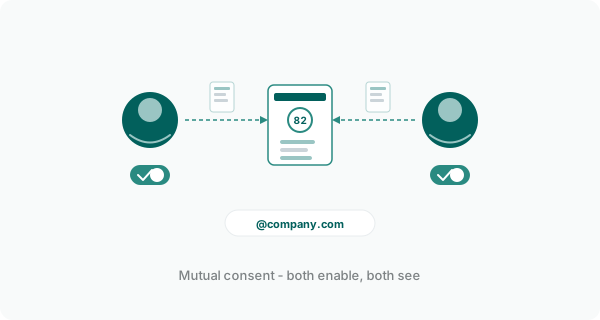
We just shipped Team Sharing for OptimAI Pro users. It's deliberately simple: flip a toggle, and everyone at your company who also has it enabled can see each other's reports. No invites. No admin panel. No per-seat pricing.
How it works
Team Sharing uses your work email domain to figure out who's on your team. If you signed in with an @acme.com address and your colleague signed in with their @acme.com address, you're on the same team. That's it.
To enable it, click the settings menu in the bottom left, select "Team Sharing", and turn on the toggle. Your domain is displayed so you can confirm which colleagues will be included. Anyone at your domain who also enables sharing can now see your reports - and you can see theirs.
Why mutual consent matters
Here's the design decision we're most proud of: sharing is bidirectional. Both people have to opt in. If you enable sharing but your colleague hasn't, they can't see your reports and you can't see theirs. There's no admin who can force everyone's data to be visible. Every individual controls their own toggle.
This means a freelancer sharing an email domain with colleagues doesn't accidentally expose client work. A new hire doesn't automatically get access to everything. You turn it on when you're ready, and you can turn it off any time.
Security note: Team Sharing only works with business email domains. Public email providers like Gmail, Outlook, and Yahoo are automatically blocked - we're not going to let every Gmail user see every other Gmail user's reports.
What gets shared
When sharing is active, your team can see:
- Scorecard reports - full audit results for every page and keyword scanned
- Score history - the trend line showing how a page's score has changed over time
- Dashboard entries - shared pages appear in your dashboard with a name badge showing who ran the scan
- Action plan progress - see which suggestions have been actioned and which are still outstanding
- Credit pool - one balance for the whole team. Anyone can scan, top-ups apply to everyone. No per-seat invoicing, no arguments about who used what.
Shared reports show a small badge with the name of the person who ran the scan. You always know whose work you're looking at.
Who is this for?
Marketing teams
The content lead scans a page after a rewrite. The SEO specialist reviews the same report and spots a missing schema issue. The manager checks the dashboard and sees all scanned pages trending upward. Everyone is looking at the same data without forwarding PDFs or sharing screenshots in Slack.
Agencies
Multiple team members working on the same client site can all see the scan history and progress. No duplicated effort, no "did anyone already scan the homepage this week?" conversations. The audit trail is shared by default.
Small businesses
The business owner wants to check what their marketing person has been doing. With Team Sharing enabled, they can open OptimAI, go to the dashboard, and see every page that's been scanned along with the score trajectory. Instant visibility into whether the SEO work is moving the needle.
What it doesn't do
We deliberately kept the scope tight. Team Sharing does not include:
- Role-based permissions - everyone who opts in has the same view. No admins, no viewers, no editors. If you need granular access control, you probably need a different kind of tool.
- Cross-domain sharing - you can only share with people on your email domain. If you need to share with clients on a different domain, export the PDF report and send it directly.
This is intentional. The moment you add seat management, invite workflows, and permission matrices, you've built a collaboration platform instead of an SEO tool. We'd rather ship something genuinely useful in a day than something "enterprise-ready" in six months.
If the simplest version solves the problem, ship the simplest version.
How to enable team sharing
- Sign in with your work email (Google or Microsoft)
- Click the settings menu in the bottom left corner
- Select "Team Sharing" from the menu
- Flip the toggle to enable sharing
- Ask your colleagues to do the same
That's the entire setup process. No API keys, no workspace configuration, no support tickets. If both people have sharing enabled and use the same email domain, it just works.
The takeaway
SEO works better when the whole team can see the same data. Team Sharing gives you that visibility with zero friction - no admin overhead, no per-seat costs, no invite chains. One toggle, mutual consent, instant access.
The best collaboration features are the ones people actually use. And people use things that take five seconds to set up.
Ready to share reports with your team?
Run a Free AI SEO Audit10 free page scans. No credit card required.